Creating GA4 for your website
Google Analytics is a convenient and multifunctional tool from Google. It is designed for convenient analysis of your website or mobile application. Using this service, you can independently find out how Google Analytics is useful for your site. You will also learn what aspects you should pay attention to when doing business on the Internet or when promoting your own site. In addition, you will be able to configure and optimize various parameters and indicators that affect the performance of your activities directly on the website. G o o g l e Analytics helps you obtain important data based on the collected web statistics.

How to register for Google Analytics 4? Step-by-step instructions
In order to start working with this service and master all its useful tools, and discover many interesting features, you need to create an account in Google Analytics 4. The IT company Golden- Web Digital has prepared for you step - by - step instructions on how to register and start working with Google Analytics :
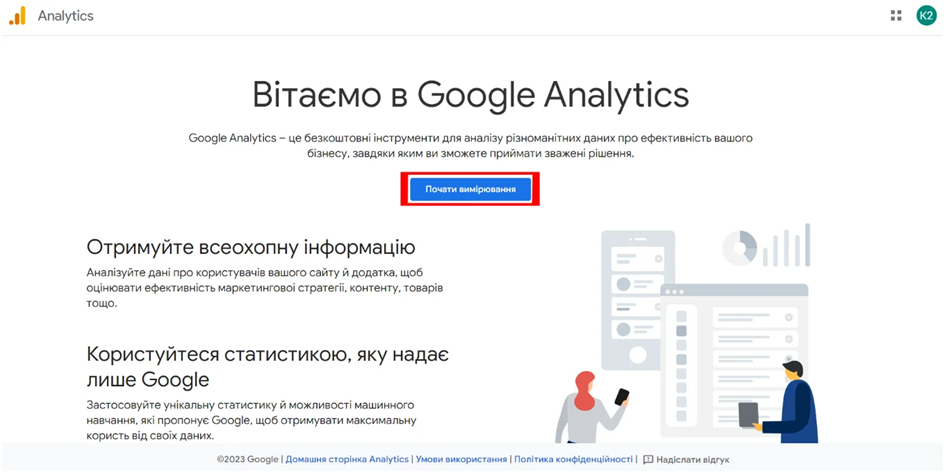
⦿ To start the process of creating an account in Google Analytics , you can follow the link here . You will automatically be redirected to the Google Analytics 4 account creation page . There you will find a large blue button with the inscription " Start measuring," highlighted in a red frame. After clicking on this button, you can start working on measuring the effectiveness of your business, in particular - analyzing statistics, analytics and measuring advertising activity;
⦿ Enter a name that usually matches your website, brand, or company name. Select a country, set the desired time zone, and the primary currency of your business. Then proceed to the next step by clicking the blue "Next" button.
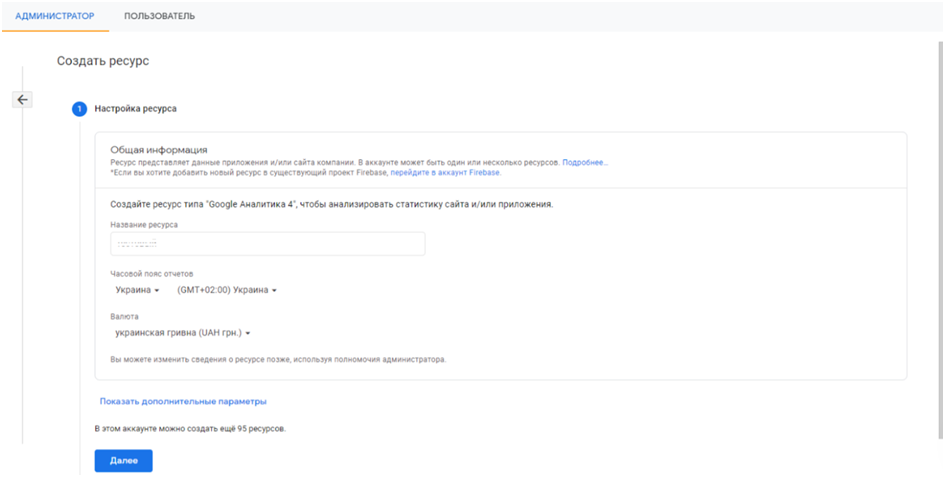
⦿ click "Next" and answer the questions, completing the resource creation process;
⦿ The next step is to configure the first data stream. This is the source from which the information that forms the site analysis will come. It is important to note that you can connect multiple data sources to one resource.
In the next part, we will talk more about setting up data flow for your site:
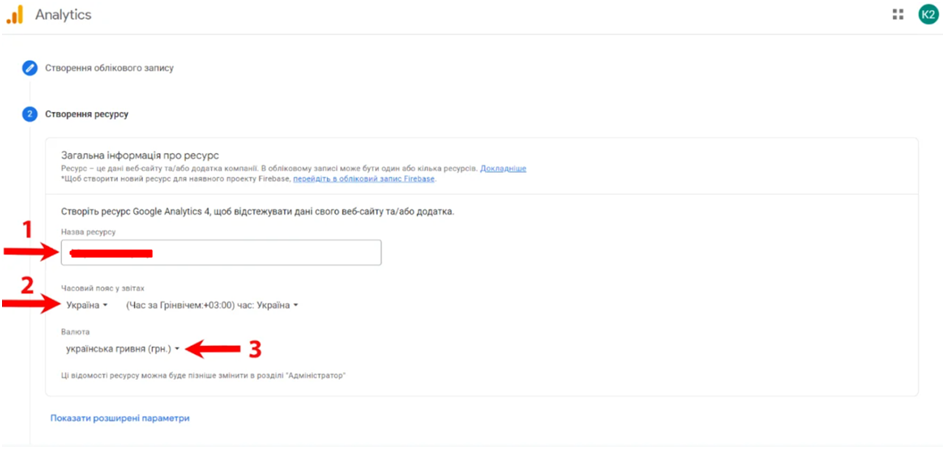
◆ The second step involves creating a GA4 property to track data on your website or app. To do this, you need to enter a "Property Name," which is usually convenient to specify based on the domain of the site and/or app where you plan to install the analytics code. For example, you can specify your company's domain without additional characters such as "https" and others.
◆ then select "Time zone for reports," setting Ukraine, and the appropriate time zone will automatically be selected according to Greenwich Mean Time. For your convenience, you can select the general time for Ukraine. Regarding the currency selection, if your account is focused on Ukraine and you work in hryvnias, it is better to select "Ukrainian hryvnia" from the list of currencies. However, do not rush to click the blue "Next" button yet!
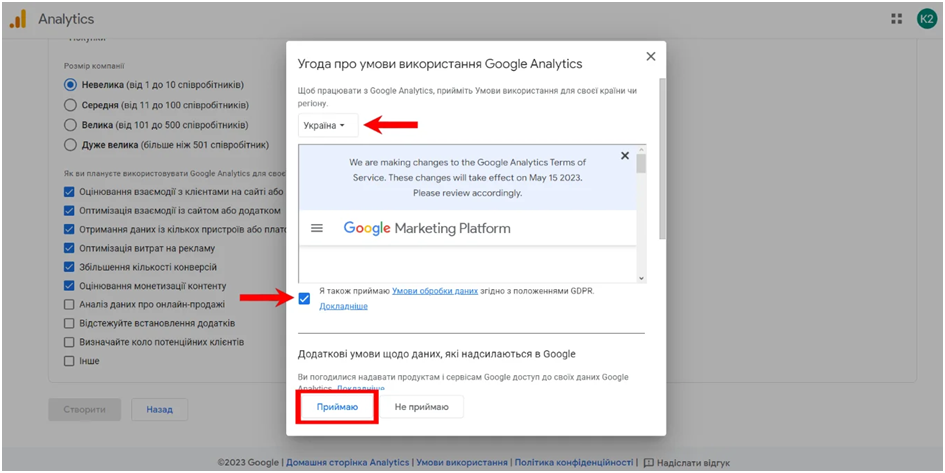
◆ after that you will see a window containing the Agreement on the Terms of Use of G o o g l e Analytics . For Google Analytics to work, you must accept the appropriate terms for your country (it is likely that in most cases it will be Ukraine). Then scroll down the page, and at the bottom of the window you need to check the box that confirms that you accept the Terms of Data Processing. After that, click the "I Accept" button. You need to do this twice.
➜ Also interesting: Google introduces new policy for limited ad placement
Google Analytics account created! What to do next?
Congratulations! You have successfully created your Google Analytics account using the instructions from Golden Web. You are now on the home page of your Google Analytics account, and by default, you are in the Google Analytics 4 resource.
To set up a data source, you need the URL of your site for further tracking. The default protocol input field is "https". Next to this field, enter the name of your site.
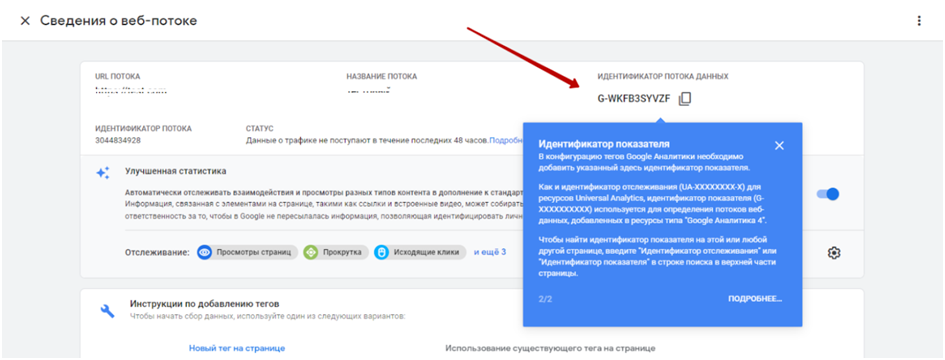
The final step is to install GA4 to promote your site. When you create a data stream for your website, a unique ID for that stream is indicated on the right. In order for the data to be recorded and displayed in the analytics report, you need to place this stream ID on your website or mobile app.
Contact Golden-Web Digital and get qualified help with Google Analytics from professionals!