How to provide access to Google Analytics 4?
Today, Golden-Web Digital – an IT company will share with you the process of providing access to G o o g l e Analytics . We will provide a short and practical instruction that will help you understand how to do it correctly step by step.
Usually, at the stage of developing a strategy and working with Internet marketing, marketers ask: how to provide access to G o o g l e Analytics ? If the settings are done correctly and there is already preliminary data in the Analytics system, then this can become a valuable source of information for improving the effectiveness of advertising campaigns. So, let's find out how to do it!

➜ Also interesting: Creating GA4 for your website
How to provide access to your account in GA4: a step-by-step guide
For convenience, we suggest you consider a step - by -step guide to Google Analytics 4 , which includes the following points:
⦿ To get started, select the correct resource you want to grant access to;
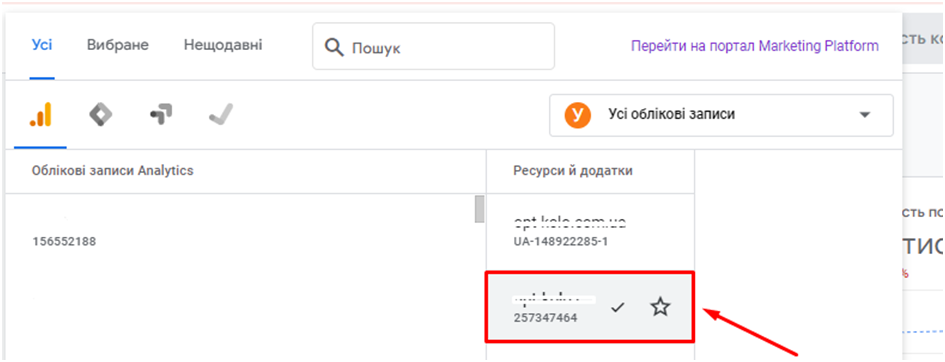
⦿ after that, go to the side menu located on the left of the screen and click on the button with the gear icon called "Administrator";
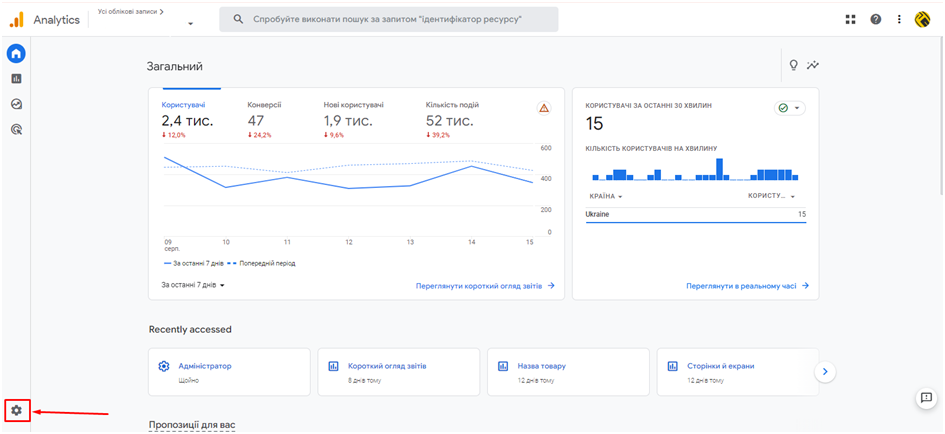
⦿ in the "Administrator" section you will see two or three columns with various tools;
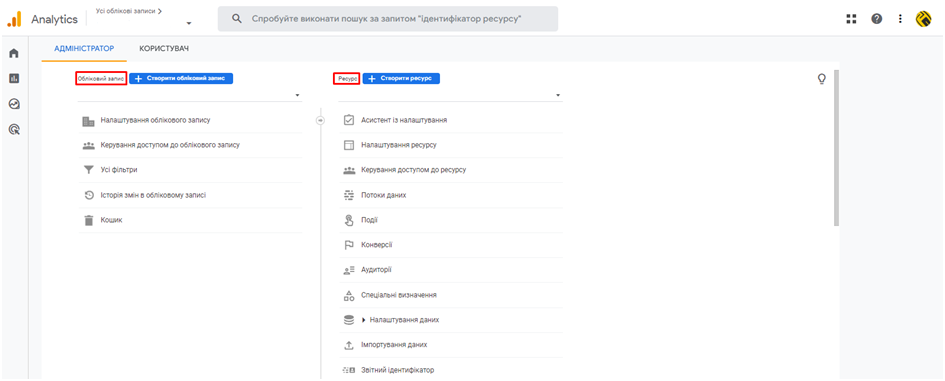
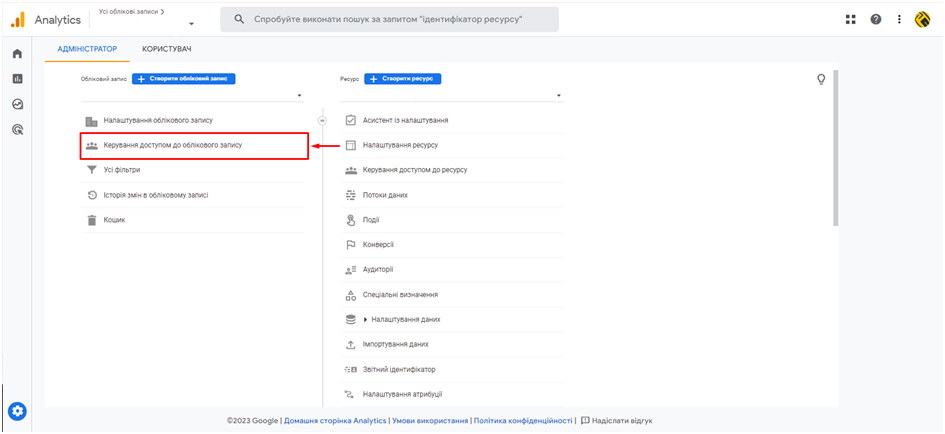
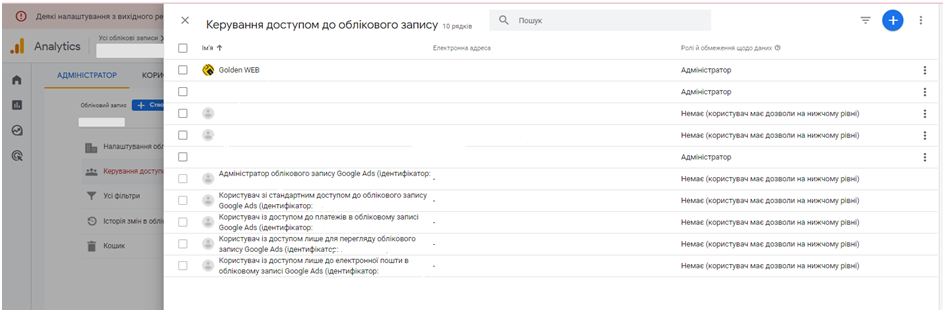
⦿ to provide access to your Google account, and not to a specific created resource (this will allow specialists to make the most of GA4 data for strategic planning), go to the "Manage account access" section;
⦿ in the window that opens, click on "+" in the upper right corner to add a new user;
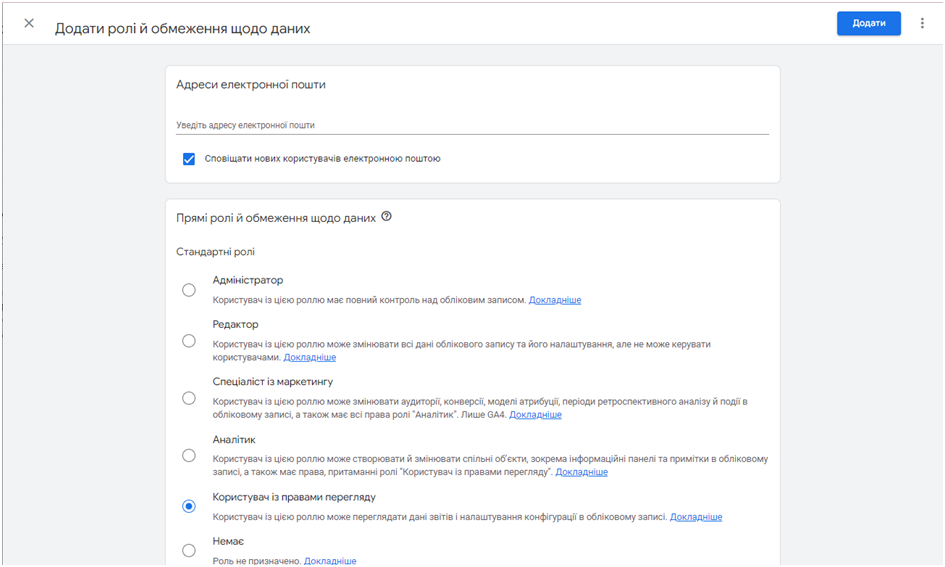
⦿ enter the Google email address for which you want to grant access to Google Analytics in the appropriate field, and select the role and data access restrictions. Then click the "Add" button in the upper right corner of the window and " Add users";
⦿ After that, you will receive a confirmation email to the specified Google email. You will need to confirm the invitation.
At this stage, the procedure for granting access to the GA4 account is complete. We hope that our detailed instructions were useful and that you had no difficulties in granting access to the advertising cabinet!